Quick hack: How to make the new CSS Overview feature of Chromium Devtools shareable
Ok, I am an impatient person. I also love to hack around with things. You may or may not know about an experiment in Chromium Developer Tools called CSS Overview. What it does is give you an excellent report about your web site’s CSS:
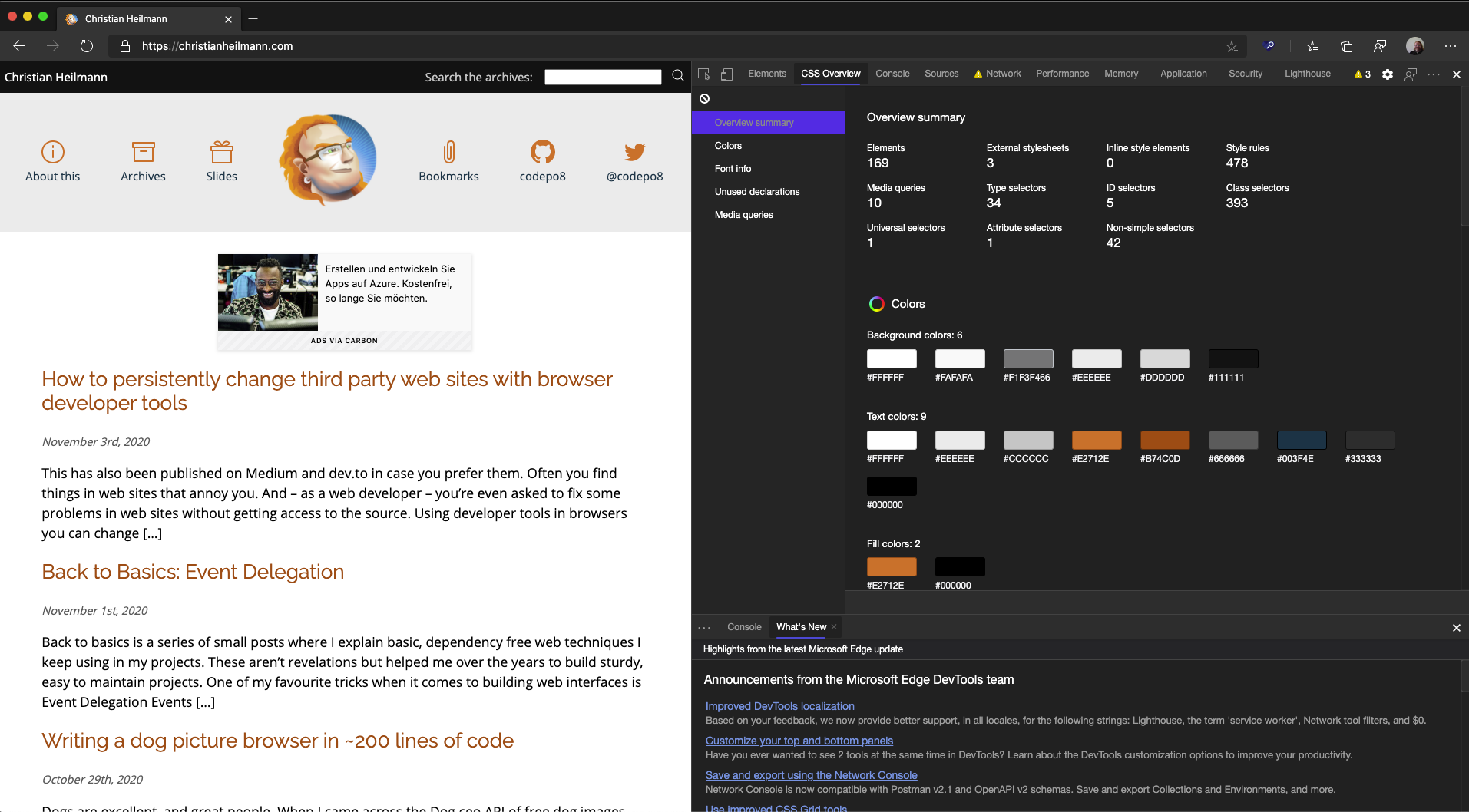
You can see statistics about the CSS like how many selectors you used, you get an overview of all the colours, learn about contrast issues and which fonts you used.
It is a bit like a style guide, but generated from the CSS used in the document. Now, I’d love this to be shareable with third parties to show, for example, a client what they’ve done wrong in their CSS. But for now, this isn’t a feature yet.
However, there is a quick and dirty way to make the results shareable. You can watch the screencast on YouTube or look at the instructions below.
Here’s how to do this step-by-step.
<ol> - Go to the site you want to get the CSS overview from - Open Developer tools (CMD|Ctrl+Option+I) - If you haven’t got CSS Overview yet, go to the settings (the little cog), pick “Experiments” and select on the CSS Overview option<br> [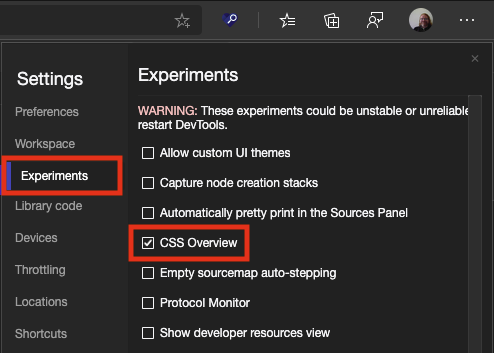](/wp-content/uploads/2020/11/experiments.png) - Restart DevTools - Go to the CSS Overview Tab and press the “Capture Overview” button – you should get your report - Go to the … menu top right of the Developer Tools and select the “undock to separate window” option – the DevTools should be an own window now.<br> [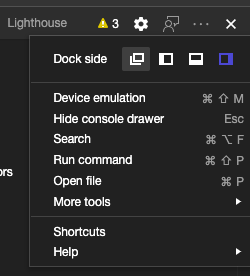](/wp-content/uploads/2020/11/undock-into-own-window.png)<br> [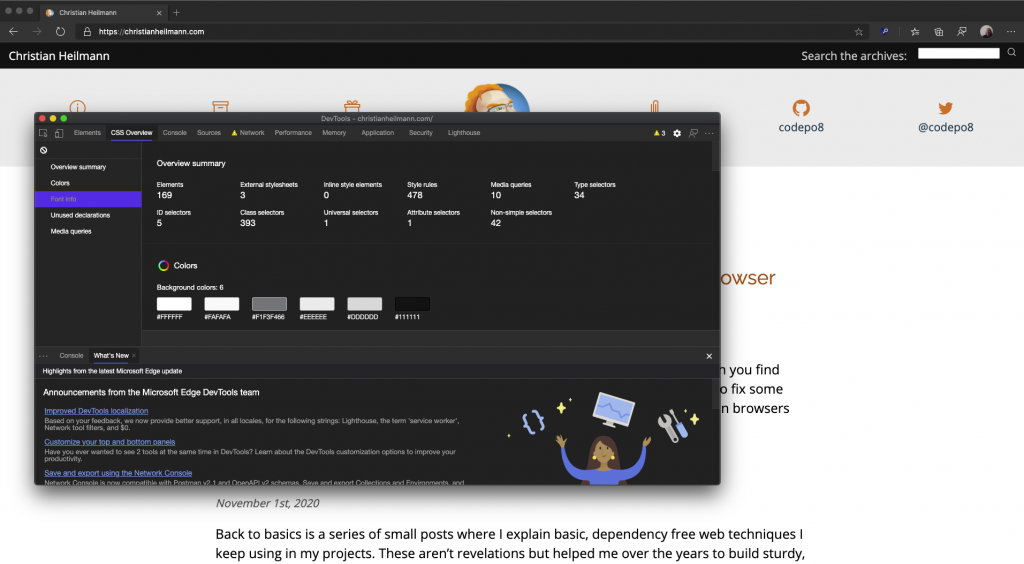](/wp-content/uploads/2020/11/undocked-into-own-window.png) - Click on that window to give it focus and press CMD|Ctrl+Option+I again. This will open another DevTools instance that debugs the current one!<br> [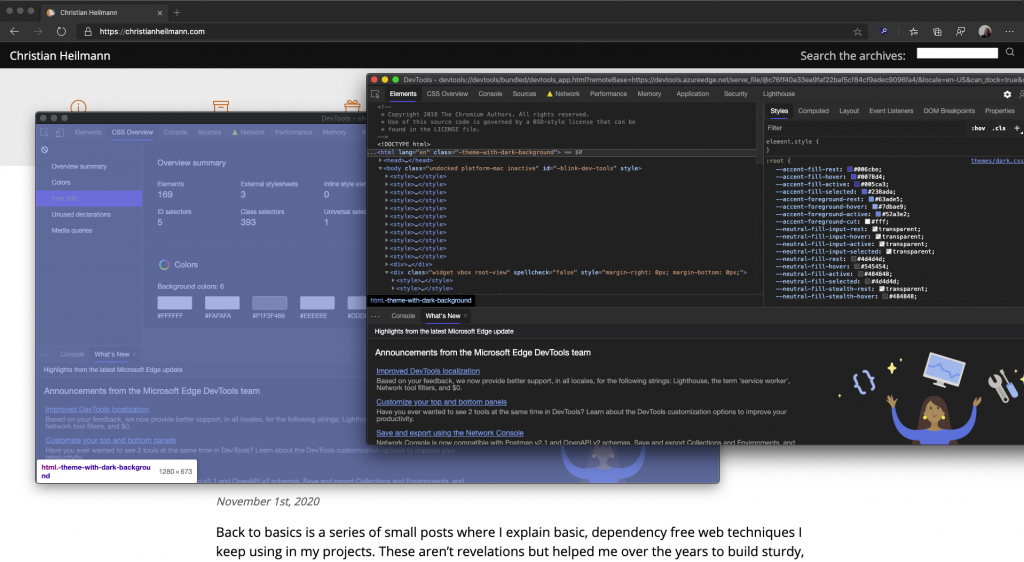](/wp-content/uploads/2020/11/devtools-debugging-devtools.png) - Go to the Elements tab and scroll all the way up until you are at the HTML element. - Click the element and click the … menu at the beginning of the line - Select “Copy Outer HTML” from the menu<br> [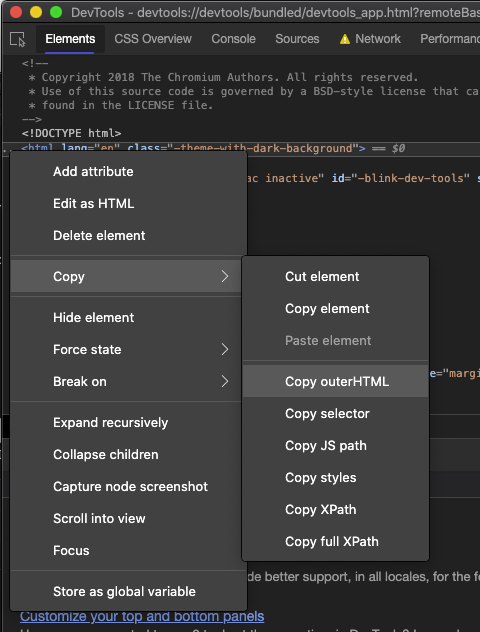](/wp-content/uploads/2020/11/copy-outer-html.png) - Close this instance of DevTools - Dock the other instance back to the left of the browser (by selecting … again and choosing the left option) - Open a new browser tab with CMD|Ctrl+t or hitting the + next to the tab - Go to the Elements tab, and go back to the HTML element again. - Right-Click and select “Edit as HTML”<br> [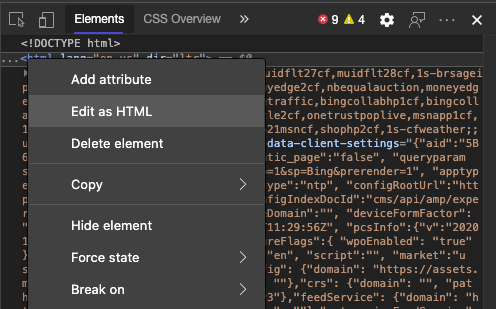](/wp-content/uploads/2020/11/edit-as-html.png)<br> [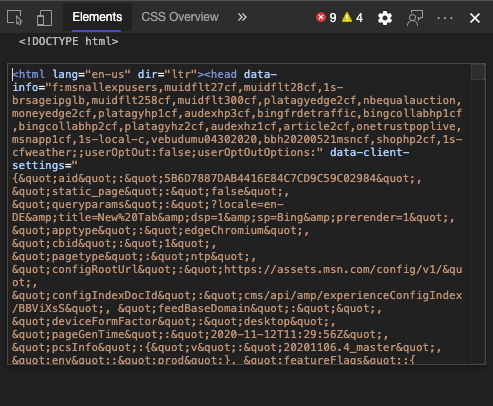](/wp-content/uploads/2020/11/editing-html.png) - Highlight all the HTML with CMD|Ctrl+a and paste the copied HTML with CMD|Ctrl+v - Click outside the edit box and the document is now the report of the CSS Overview - Print, save as HTML or whatever else you fancy
</ol> Quick and dirty, but for now does the job. Tell me what you think about the CSS Overview feature and what else it should do on Twitter at either [@ codepo8](https://twitter.com/codepo8) or the official [@ EdgeDevTools](https://twitter.com/edgedevtools) account.